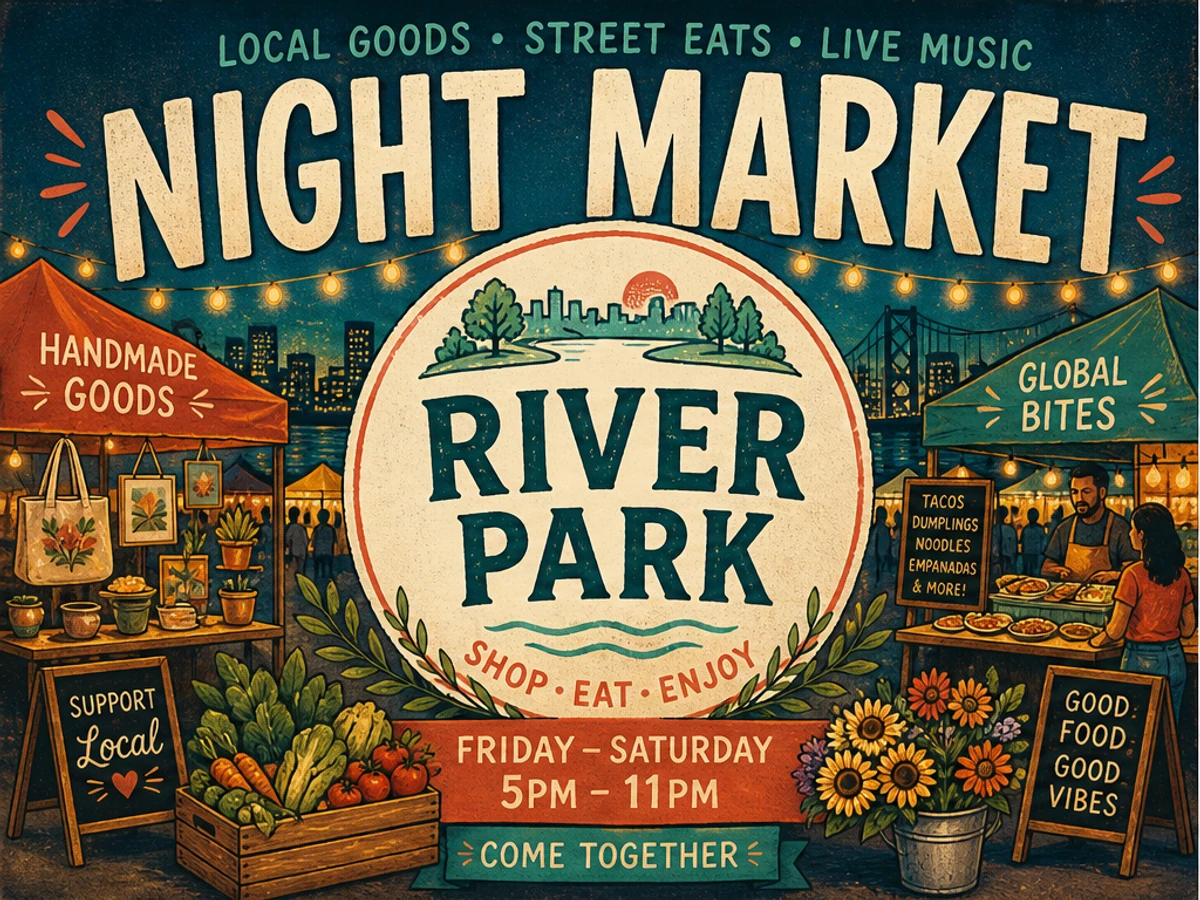
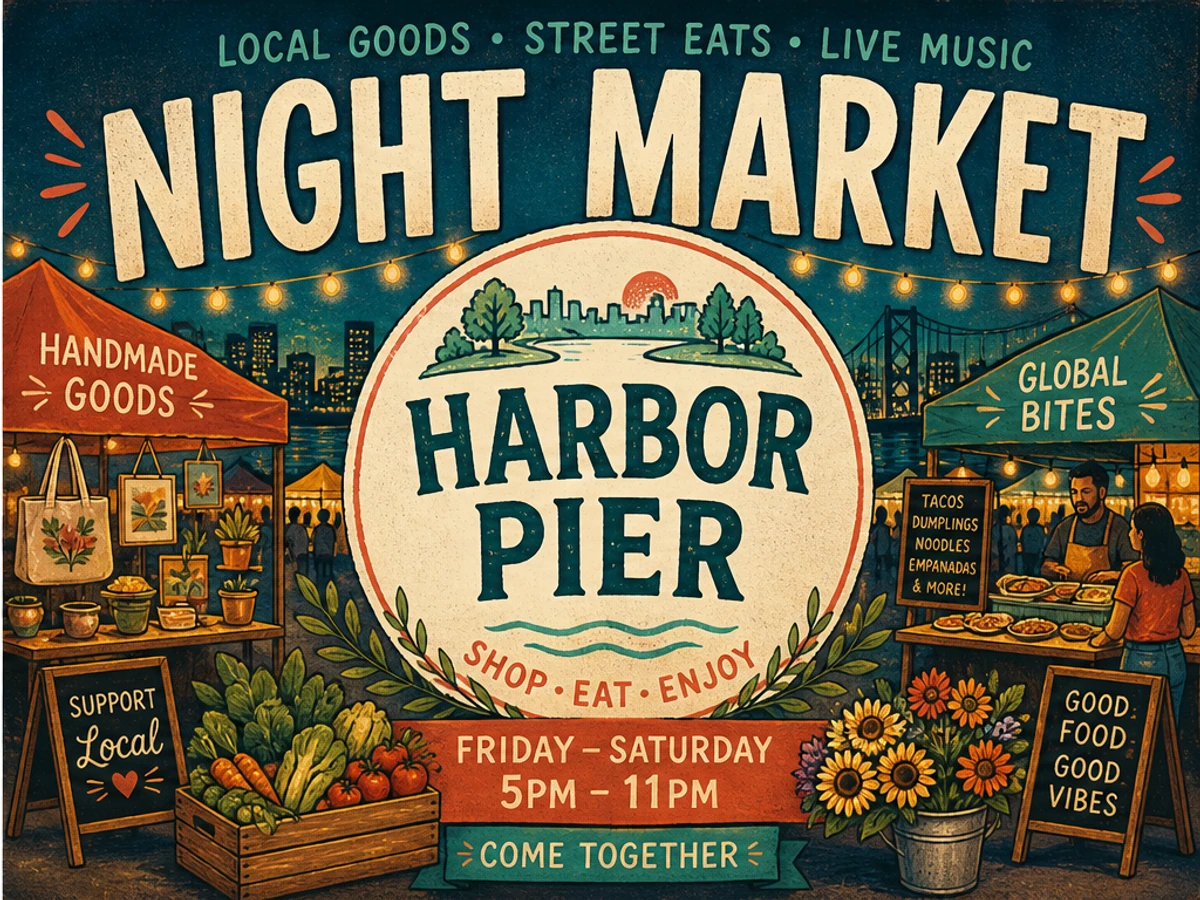
Use this poster text editor when a finished event poster, flyer, class announcement, or campaign graphic needs one approved wording change. Upload the flattened artwork, replace the visible text, and compare the result before publishing.
Upload the poster image, enter the current visible wording and the approved replacement, then review the edited result before publishing. The interactive upload, target-area brush, account, generation, and download workflow becomes available when the application loads.
These original poster examples use lively artwork, baked-in display type, and obvious before/after wording changes so the poster editing workflow stays easy to understand at page size.

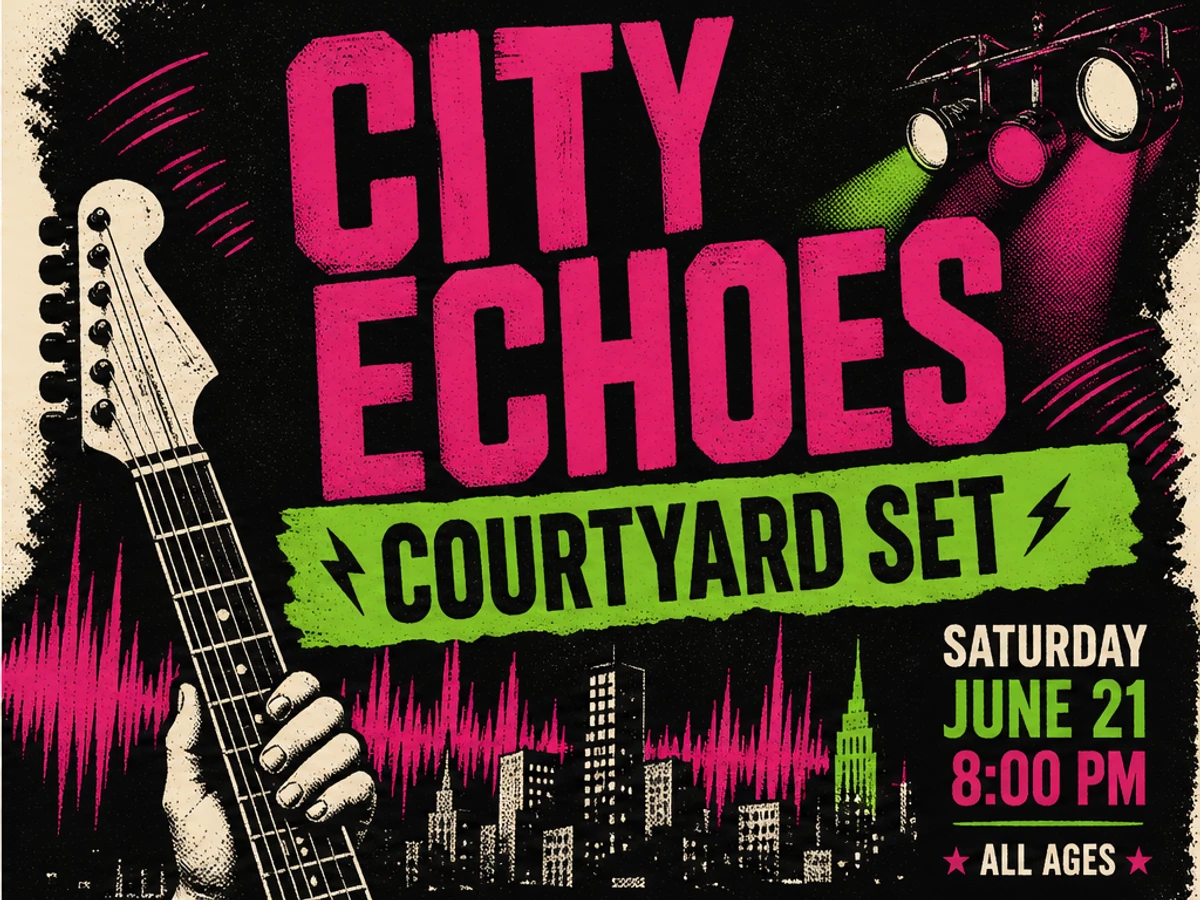


Use ChangeTextImage when the poster is already flattened and the old source file is missing, archived, or hard to reopen. The best jobs are compact updates such as a venue, offer, headline, class name, sponsor line, or short callout that still fits the original composition.
Before changing poster artwork, check the current event page, ticket listing, campaign brief, sponsor approval, or class schedule. A clean visual edit can still confuse people if the caption, booking page, calendar invite, or partner asset still says something else.
Posters often use shadows, outlines, ribbons, badges, distressed texture, or hand-lettered edges. If automatic targeting needs help, brush the whole text unit plus a little nearby background so the replacement has enough context to blend with the existing artwork.
Short replacements usually work better than long copy. When updating poster designs, review whether the new phrase changes line breaks, spacing, contrast, hierarchy, or balance. If the message is much longer, rebuild the layout in a design tool.
Check the edited poster as a social crop, email image, web thumbnail, and print preview. The replacement should stay readable without looking pasted on, and surrounding illustration, paper grain, color, lighting, and alignment should still feel consistent.
Save the original poster, the approved replacement copy, and the final export. When a poster text editor fixes the visible wording, also update scheduled posts, partner folders, and old downloads so outdated versions do not keep circulating.
If you need new bleed, vector logos, long sponsor tiers, localized editions, color-mode changes, or print-ready approval, use the editable poster source and a qualified designer. AI editing is a useful recovery path for finished artwork, not a replacement for every production workflow.
Do not change IDs, receipts, certificates, payment records, official notices, private messages, or evidence. Update poster assets only when the change is authorized, truthful, and appropriate for public creative communication.
Upload the poster image, enter the current visible wording and the approved replacement, optionally brush the text area, then generate and compare the edited poster before publishing.
Large, readable poster text on a badge, ribbon, headline, venue line, offer, sponsor line, or class title works better than tiny, blurry, angled, or heavily compressed lettering.
AI tries to match the visible type style, color, spacing, lighting, texture, perspective, and surrounding background. Exact font recovery and perfect repair are not guaranteed.
Only when the license and your role allow modification. Check rights for the poster template, illustration, photography, font, logo, sponsor treatment, and distribution use.
Use Brush when the poster has repeated wording, decorative lettering, textured type, a badge, ribbon, sign, or nearby art that should stay untouched.
Use the editable source file and production review for critical print work. Check resolution, bleed, color, licensed fonts, vector marks, and every public detail before printing.
Upload JPG, JPEG, PNG, or WebP poster images up to 10 MB. Clear, high-resolution artwork with enough surrounding background usually edits best.
Upload the poster image, enter the current visible wording and the approved replacement, optionally brush the text area, then generate and compare the edited poster before publishing.
Large, readable poster text on a badge, ribbon, headline, venue line, offer, sponsor line, or class title works better than tiny, blurry, angled, or heavily compressed lettering.
AI tries to match the visible type style, color, spacing, lighting, texture, perspective, and surrounding background. Exact font recovery and perfect repair are not guaranteed.
Only when the license and your role allow modification. Check rights for the poster template, illustration, photography, font, logo, sponsor treatment, and distribution use.
Use Brush when the poster has repeated wording, decorative lettering, textured type, a badge, ribbon, sign, or nearby art that should stay untouched.
Use the editable source file and production review for critical print work. Check resolution, bleed, color, licensed fonts, vector marks, and every public detail before printing.
Upload JPG, JPEG, PNG, or WebP poster images up to 10 MB. Clear, high-resolution artwork with enough surrounding background usually edits best.
These references support poster layout, images-of-text accessibility, and truthful marketing guidance. They do not review or endorse ChangeTextImage.